|
Wave Addition program for DOS/Win, Michael Hecht, 1999
Download (~270k)
A graphical, interactive tool for visualizing the interference of traveling waves over time. Features smooth 70 fps animation, anti-aliased graphics, and quick save/load parameters to/from disk. Parameters which can be set/adjusted in real-time are: frequency of source waves, toggle show-nodes on result wave, adjust overall speed, toggle echo mode, toggle resonance mode, and others.
This program consists of a single executable (.exe) file that you can place anywhere. When run for the first time it creates a file called wave.ini in which save-states are stored. Initially wave.ini contains predefined saves but you may replace these with your own. If you delete wave.ini then it will be re-created with predefined states the next time you run the program.
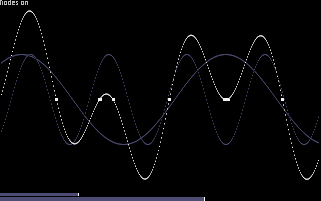
The main screen of the program (as shown above) consists of two waves (blue) moving in opposite directions, and a new wave which results from adding the values of the moving waves together at every point.
You may press H at any time to toggle display of the help window, which lists all keys and a short description of what each does.
Adjusting wavelength
Press F1 or F2 to decrease or increase the wavelength of the first wave, and F3 or F4 to decrease or increase the wavelength of the second wave. If you hold down shift while pressing F1-F4 you can adjust the wavelength 4 times as fast. Notice that the two white vertical lines at the bottom of the screen respond as you adjust the wavelength, and that the blue bars constantly gravitate towards the lines as you adjust them. The bars indicate the actual wavelength of the component waves, while the lines indicate the target wavelength that the bars smoothly gravitate towards. If you want the bars to always match up exactly with the lines, press L to lock them together.Adjusting speed
You can adjust how many pixels the blue waves move per frame by pressing the gray plus and minus (+ / -) keys on the right side of the keyboard. Hold down shift while adjusting speed to adjust continuously. The minimum speed is when the waves are moving one pixel per frame, and the maximum is unbounded.You can generate interesting effects by adjusting the speed so that the waves move a certain large number of pixels per frame-- get the speed just right and illusions of motion in 3D can be generated. In fact the default saves demonstrate effects caused by certain speed / wavelength combinations. Press any number to load a save-state.
Each time you press the + or - keys the speed will be adjusted one pixel at a time-- you have to let go of the key and press it again in order to make further adjustments. In order to adjust the speed fast, hold down shift while you press plus or minus. Due to the way that the waves are calculated, if you go too fast (such as holding down shift+plus for more than 30 seconds) you will probably start to see the program slow down because too many calculations are being made for the computer to keep up with the monitor refresh. [Actually this is due to very inefficient coding]
When you want to come back down to 0 again fast, recall that you can just hit a number to load one of the presets.
Saving and loading states
There are 10 available slots that you can save and load to/from. A save-state slot consists of all the parameters that control the current screen: the wavelengths, switches, and colors. To load a state, just press its number on the top of your keyboard (1-9 and 0) and it will be instantly loaded. (Actually, it will "fade" in as the two component waves flow onto the screen and the actual wavelength is gradually adjusted to the target...) To save a preset, simply hold down shift while you press the number of the slot you wish to save the current parameters to. When you exit the program, the save slots will all be written to the file wave.ini.
wait vSync
Normally, the program waits until the monitor is ready is ready before sending each frame to the screen-- i.e., wait-vSync is on. This means that the animation is exactly synchronized to the monitor's refresh rate and appears as smooth as possible. The monitor will draw 70 frames per second, and the program will run at the exact same speed, as the computations are not complex. What happens is that your computer finishes drawing the next frame, say, in half of the time it has available (1/140th of a second) and then just sits and waits until the monitor indicates that it is ready to display the next frame, at which point the program copies the frame to the monitor and calculates the next frame, finishing with plenty of time to spare. The computer sits idle again, until the monitor is ready, then the frame is copied, and the process begins again-- 70 times per second. However, you can turn off synchronizations and let the program run as fast as it possibly can without waiting for the monitor. This will generate choppy animation-- for example, if the program sends a new frame to the monitor when it is only halfway done displaying the previous frame, the monitor discard all of the old information and continue with the new information right in the middle of the screen, and you'll notice a break in the graphics where the previous frame ends and the new frame starts. As always, this mode is available for you to experiment with. With wait-vSync off, you'll notice that the program slows down when you make it perform more calculations-- such as turning on the help screen-- because it is not synchronized to the monitor or any timer.Clear Screen
This mode toggles not clearing the screen between frames. Each new frame will be drawn on top of the previous frame. You'll notice that if you turn on the help screen, it appears that the area below the transparent background is, in fact, cleared-- however, this is related to the fact that the help screen is being drawn on top of the old help screen from the previous frame-- so the transparency eventually layers up so much that it becomes opaque. (Similarly, if you put a large number of clear plastic sandwich bags on top of each other you will no longer be able to see through them.)Echo
With echo mode on, the component wave moving from left to right will bounce off of the right side of the screen to form the right-to-left moving wave. This will invariably result in a standing wave in the result wave, because the wavelengths of the component waves will be exactly the same. when this mode is on, you can adjust the right-to-left meters on the bottom of the screen, but these have no effect on the wave display.This mode demonstrates what happens when you have a rope fastened on one end (the right side) and you shake it up and down on the other side (the left side). Standing waves will be formed in the rope.
Resonate
This mode produces interesting results because the ranges of the blue component waves can vary. In resonate mode the wavelength from the left-to right moving wave is used, and it bounces off of the rigt side of the screen to generate the right-to-left moving component wave, just as in echo mode. However, when the wave reaches the left side of the screen it is recycled-- the value of the wave is added to the value that the left-to-right wave would have been to form a new value. Basically, the energy in the system is preserved since the oscillations in the right-to-left wave interfere with the normal oscillations in the left-to-right wave. Unless the wavelength is exactly of a specific energy (a whole-number fraction of the width of the screen) the maximum energy in the system (the highest point that the result wave ever reaches) will gradually rise and fall, since the alignment of the waves causes energy to build up, and then to cancel itself out. The peaks of all of the waves may run off the screen for a time, but they will eventually come back down-- unless the component wavelengths divide the screen into exactly equal parts, in which case the energy in the system will constantly increase. Note that being in echo mode has no effect on resonate mode, because resonation also entails an echo.Nodes
Show the points at which the result wave is (nearly) zero. You can get nodes to move across the screen at a much faster rate than the waves themselves by choosing two wavelengths for the blue waves which are very close together.To think about: Could you use this property [that the nodes can move much faster than the waves themselves) to transfer data through a medium faster than waves will propagate through the medium? (i.e., could this enable faster-than-light transmission of data?)
Zap
Hit Z to reset all the values of the waves that are on the screen to Zero. You will then be able to see them re-flow and interfere with each other.Align
Sets the target wavelength of the right-to-left moving wave to be equal to that of the left-to-right moving wave. This will produce standing waves as they interfere.Quit
Exit the program.
|